


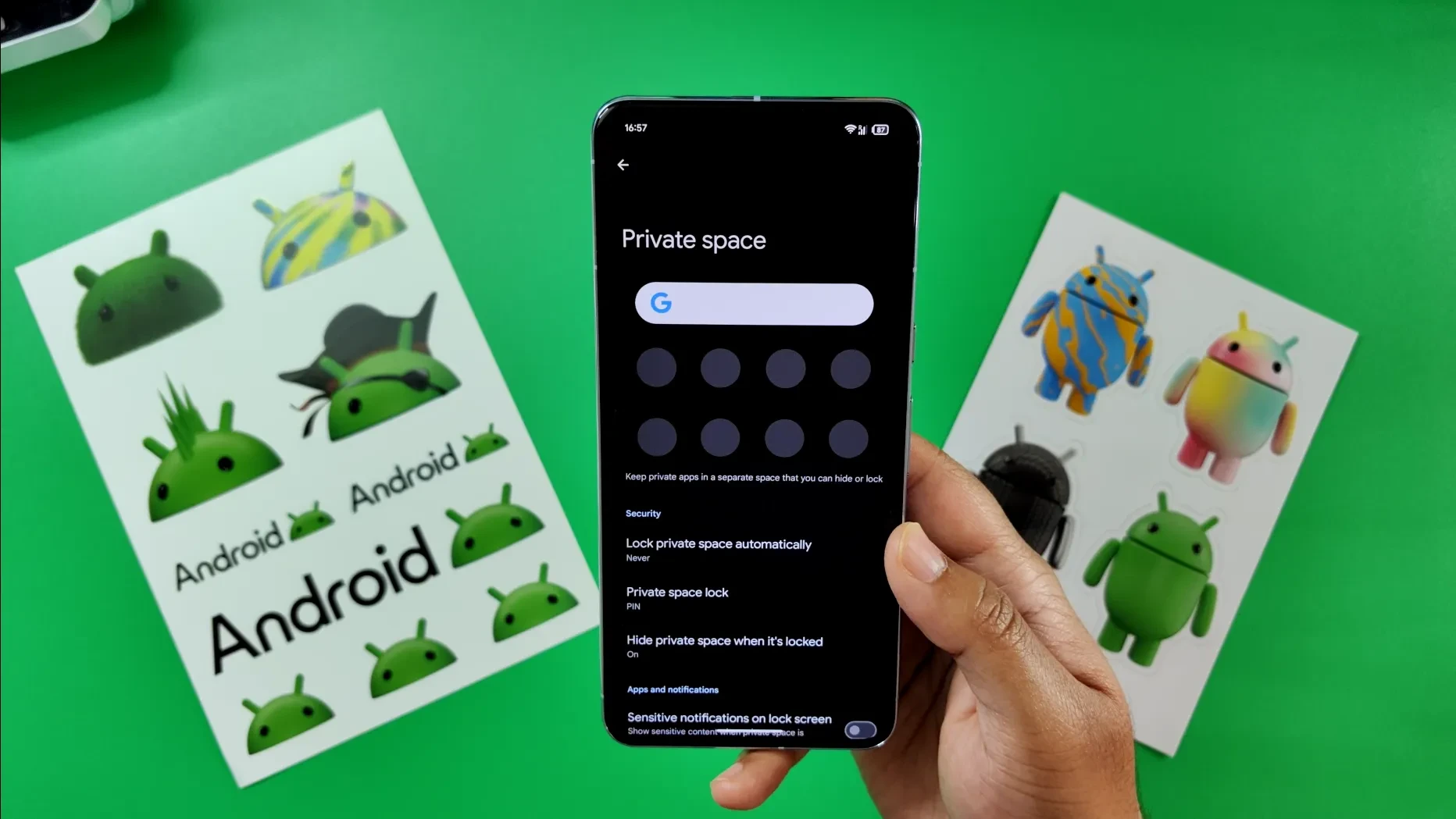
One of the most powerful features introduced in Android 15 is Private Space — a dedicated, locked-down area within your app drawer that lets you hide sensitive apps from prying eyes. Whether it's your banking apps, private messaging, or health data, Private Space ensures nobody can access them without authentication.
What Is Private Space?
Private Space is essentially a separate user profile that lives within your phone. Unlike simply locking individual apps with third-party tools, Private Space creates an isolated environment with its own app instances. This means:
- Apps in Private Space have separate data from the same apps in your main profile
- You can sign into different Google accounts in Private Space
- Private Space apps don't appear in your recent apps, notifications, or settings
- The entire space can be completely hidden from your app drawer
How to Set Up Private Space
- Open Settings → Security & Privacy → Private Space
- Tap Set up Private Space and authenticate with your screen lock
- Create a separate lock for Private Space (PIN, pattern, or biometrics)
- Optionally sign in with a different Google account
- Your Private Space is now ready — find it at the bottom of your app drawer
Pro Tips for Using Private Space
1. Hide Private Space Completely
By default, Private Space shows as a locked section at the bottom of your app drawer. But you can make it completely invisible:
- Go to Settings → Security & Privacy → Private Space
- Toggle on "Hide Private Space"
- To access it later, type "Private" in the app drawer search bar
2. Use a Different Google Account
This is a game-changer for privacy. Sign into a completely separate Google account within Private Space. Your private apps, purchases, and data remain entirely separate from your main profile.
3. Lock Private Space When Not in Use
Private Space automatically locks when your phone screen turns off. But you can also manually lock it by going to the Private Space section and tapping the lock icon.
4. Install Apps Directly to Private Space
Open the Play Store from within Private Space to install apps directly there. These apps won't appear anywhere in your main profile.
Private Space vs. Samsung Secure Folder
| Feature | Private Space (Android 15) | Samsung Secure Folder |
|---|---|---|
| Availability | All Android 15 devices | Samsung Galaxy only |
| Separate Google Account | Yes | Yes |
| Hide from App Drawer | Yes | Yes |
| Separate App Data | Yes | Yes |
| File Storage | Limited | Full file manager |
| Notification Control | Hidden completely | Configurable |
Which Apps Should You Put in Private Space?
- Banking & Finance: Google Pay, PhonePe, bank apps
- Health: Medical records, health trackers
- Private Messaging: Secondary messaging accounts
- Work Apps: Office apps with sensitive documents
- Two-Factor Auth: Authenticator apps for extra security
Important Limitations
Before relying on Private Space, be aware of these limitations:
- You can only have one Private Space per device
- Notifications from Private Space apps are completely hidden — you won't see them unless you unlock Private Space
- Some device management policies may restrict Private Space
- Factory reset will delete all Private Space data
Private Space is available on all Android 15 devices, including Pixel phones, Samsung Galaxy (alongside Secure Folder), OnePlus, Xiaomi, and other manufacturers running Android 15 or later.


Comments (0)
Be the first to comment!