


முக்கிய விஷயங்கள்
- TN eSevai is the Tamil Nadu government's online counter for certificates like community, income, and nativity certificates.
- Citizen login needs just a mobile number or Aadhaar number, plus an OTP — no separate office visit for the sign-up step.
- Service charges at eSevai centres are small, usually a flat per-application fee rather than a big government tax.
- You can apply fully online for many certificates, but a few still need a quick visit to a physical eSevai Maiyam.
- Wrong mobile number linked to Aadhaar is the number one reason people get stuck at OTP stage.
What is TN eSevai and why do people keep searching for its citizen login?
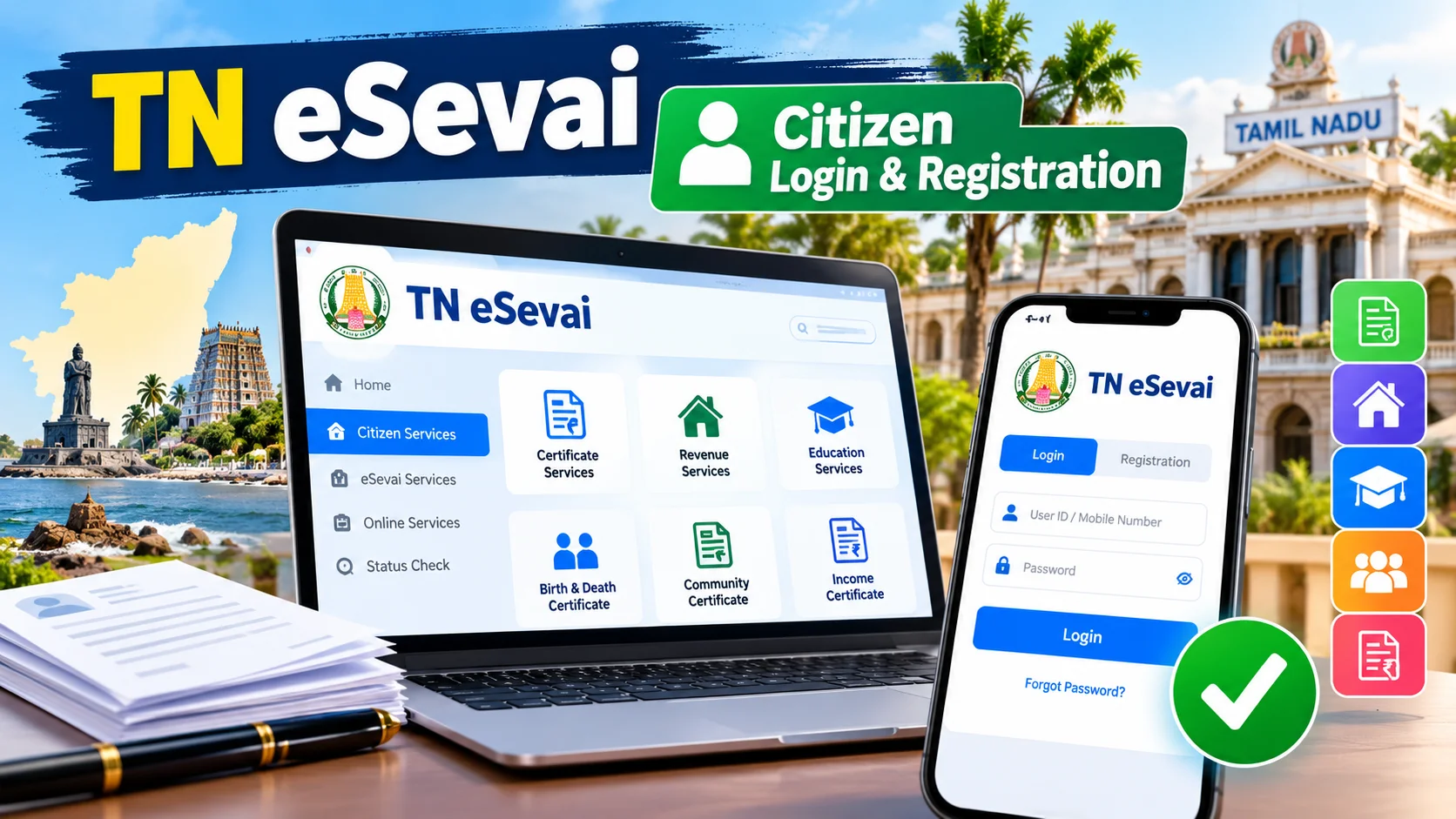
TN eSevai is Tamil Nadu's single online window for government certificates and a bunch of citizen services — think community certificate, income certificate, nativity certificate, legal heir certificate, and more. People search for the citizen login because that's the gate you walk through before you can apply for any of these online, track an application, or download a certificate that's already been issued.
Here's the thing most people don't realise. eSevai isn't a new app that dropped last week — it's been around for years, running through the tnesevai.tn.gov.in portal and the physical eSevai Maiyam centres you see in almost every taluk. What confuses people is that there are two doors: the citizen door (self-service, from your own phone) and the operator door (where someone at the centre applies on your behalf for a small fee). The login question is almost always about that first door.
How does the tnesevai citizen registration actually work?
Registration is shorter than people expect. You go to the TN eSevai website, pick the citizen login option, and look for "New User? Register Here." From there, it's mostly phone-and-OTP, not paperwork.
The usual flow looks like this:
- Open tnesevai.tn.gov.in and click on Citizen Login / Register.
- Enter your mobile number — ideally the one linked to your Aadhaar, since many certificate applications ask for Aadhaar-based verification later.
- Enter the OTP that lands on your phone within seconds.
- Set a username and password for future logins — write this down somewhere, because forgetting it is the second most common support call.
- Fill basic details — name, address, date of birth — exactly as they appear on your Aadhaar or ration card, because mismatches cause rejections later.
- Once registered, log back in anytime with your username/mobile and password.
After login, you pick the service you need — say, a Community Certificate — fill the application form, upload supporting documents (ration card, school certificate, address proof), and submit. Some services let you pay the fee online through net banking or UPI; others still route you to the nearest eSevai centre to pay and collect.
What changes for people in Tamil Nadu once you're registered?
Once you're registered, the certificate hunt that used to eat a half-day at a government office shrinks to twenty minutes on your phone — for most services, not all. Students applying for college admission, parents filling scholarship forms, and job seekers submitting caste or income proof are the three groups who use this the most every single year.
Here's a quick look at the kind of services people usually come to eSevai for, and roughly what to expect:
| Service | Typically Needed For | Mode | Approx. Service Charge* |
|---|---|---|---|
| Community Certificate | College admission, govt. jobs, reservation benefits | Online / Centre | ₹30 - ₹60 |
| Income Certificate | Scholarships, loans, fee concessions | Online / Centre | ₹30 - ₹60 |
| Nativity Certificate | Proving native of TN for admissions | Online / Centre | ₹30 - ₹60 |
| Legal Heir Certificate | Property, pension, bank claims after death | Mostly Centre visit | Varies by case |
| Residence Certificate | Local address proof for various forms | Online / Centre | ₹30 - ₹60 |
*These are typical eSevai Maiyam service charges, not government taxes — actual amounts can vary slightly by district and service, so always check the fee displayed on the portal before you pay.
Notice the pattern: application charges are small, but the real value is not standing in a queue. For someone in a village far from the taluk office, that's a genuine saving of time and bus fare, not just convenience talk.
What should you do now — and what mistakes to avoid?
If you need a certificate recently, don't wait — register today, because verification and approval can take a few working days depending on the service and the officer's workload at your end. Keep your Aadhaar, ration card, and any previous certificate scanned and ready in PDF or JPEG before you start the application; it saves you from restarting halfway.
A few mistakes trip up almost everyone the first time:
- Wrong mobile number on Aadhaar. If your Aadhaar-linked number is old or switched off, OTP never arrives. Update it at an Aadhaar centre first.
- Blurry document uploads. A photo of a ration card taken in dim light gets rejected more than people realise. Scan it properly or use a scanner app.
- Confusing eSevai with other TN portals. TN has several portals — eDistrict, TN-eGA schemes, and eSevai — and people sometimes register on the wrong one and wonder why their certificate never shows up.
- Multiple registrations. Creating a second account because you forgot your password just creates duplicate records. Use the "forgot password" link instead.
- Skipping the status check. Many applications sit "under verification" for a few days — check the application status page before assuming something's wrong.
One more honest point: not every certificate is a pure online affair end to end. Some still need you to walk into the eSevai Maiyam once — either to submit originals for verification or to collect a signed printout. The portal tells you this at the application stage, so read that screen instead of skipping past it.
How do you track your application and download the certificate once it's approved?
Once you've submitted a form on TN eSevai, the natural next question is: where did it go? Log back into your citizen account, head to the "Application Status" or "Track Application" tab, and punch in the reference number you got after submission — that little number is your ticket, so save it in a notes app the moment it appears on screen. The status usually moves through stages like "Submitted", "Under Verification", "Approved", and finally "Certificate Ready", and each stage can take anywhere from a day to a week depending on how busy the verifying officer at your taluk or village office is that month.
Once the certificate flips to "Approved" or "Issued", you don't need to go anywhere to collect a paper copy for most services — the portal lets you download a digitally signed PDF straight from your dashboard. This digital copy carries a QR code and a certificate number that colleges, banks, and government offices in Tamil Nadu accept just as they would a stamped paper version, which is honestly the biggest quality-of-life change eSevai brought compared to the old system of standing in line twice — once to apply, once to collect. Keep a soft copy saved on your phone and a second backup on Google Drive or email, because scholarship and admission portals often ask you to re-upload the same certificate within days of issue, and hunting for it again wastes time you don't have during deadline season.
There's a practical limit here too, and it's worth knowing before you get frustrated. If your application sits in "Under Verification" for longer than the usual window, it almost always means a field-level officer — a VAO or tahsildar's office — needs to physically confirm something like your address or community claim, and that part of the process hasn't fully moved online anywhere in India yet. In that case, calling or visiting the eSevai Maiyam where you applied, with your reference number in hand, gets you a faster answer than refreshing the status page every hour.


Comments (0)
Be the first to comment!