


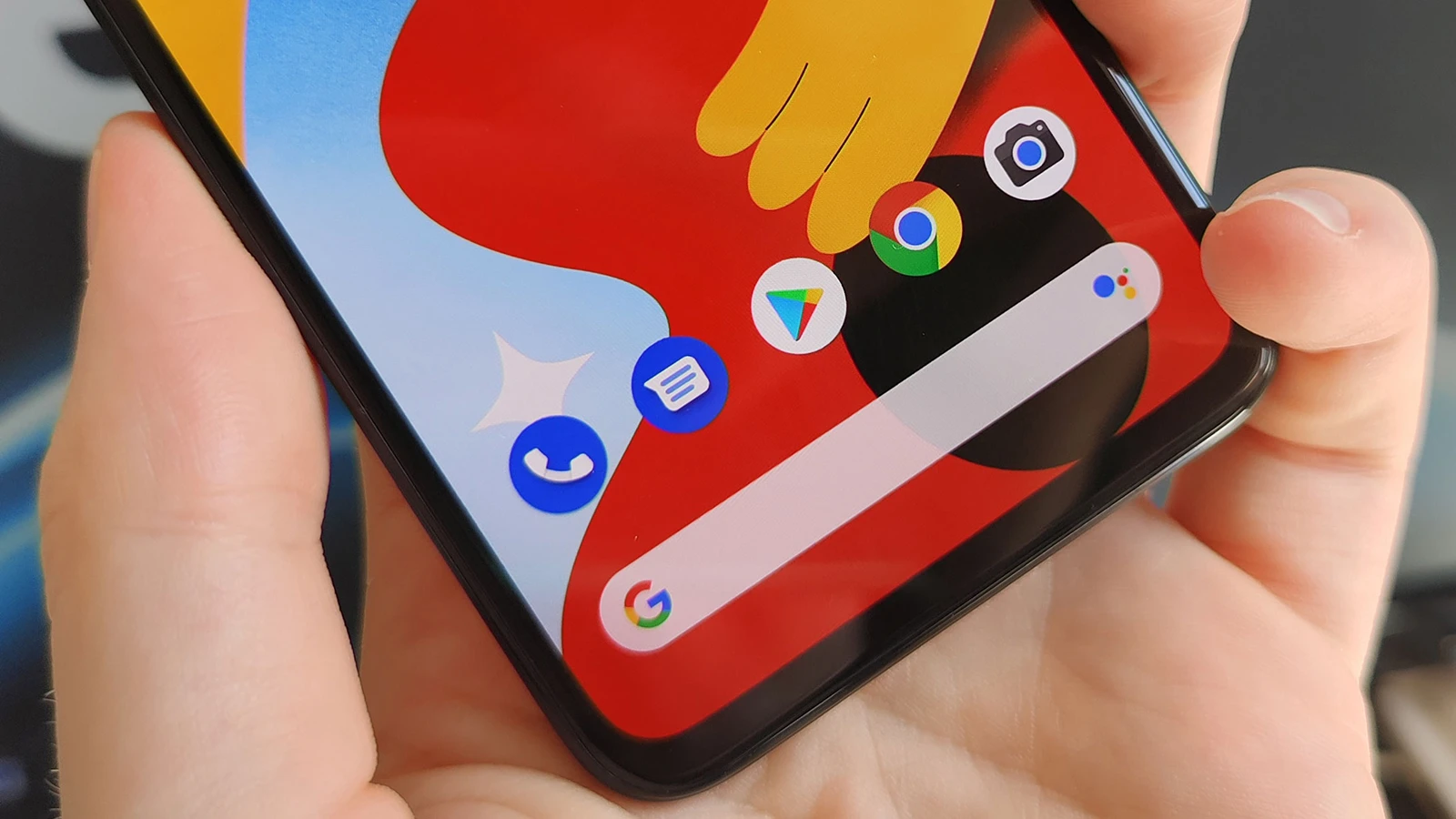
One of Android's greatest strengths over iOS is its incredible customization freedom. You can transform your phone's entire look and feel without rooting. Here are 10 powerful customization techniques for 2026.
1. Dynamic Color Theming (Material You)
Android's Material You automatically generates a color theme from your wallpaper:
- Path: Long-press home screen → Wallpaper & Style
- Choose from multiple color palettes extracted from your wallpaper
- Theme applies across all system elements: quick settings, keyboard, settings, and many apps
- Android 16: Material 3 Expressive adds even more color options and custom icon shapes
2. Custom Icon Packs
Replace your stock icons with beautiful themed icon packs:
Advertisement
- Download icon packs from Play Store (search "icon pack")
- Top free picks: Whicons (minimal white), Delta, Flight Lite
- Premium picks: Jool, Flavor, Moxy (₹50–₹200)
- Apply via your launcher: Launcher Settings → Icon Pack → select
- Samsung: Galaxy Themes Store → Icons section has themed options
3. Powerful Widgets
Widgets in 2026 are more beautiful and functional than ever:
- Google Widgets: At a Glance (date, weather, events, reminders), Google Photos memories
- Widgetsmith (via KWGT): Create fully custom widgets with your own design
- Clock widgets: Try Clockology or Minimal Clock for stunning designs
- Samsung: One UI 7 widgets are redesigned with Material You colors
- Pro tip: Long-press home screen → Widgets → search for the widget you want
4. Third-Party Launchers
Launchers completely transform your home screen experience:
- Nova Launcher: The most customizable launcher — gestures, icon sizes, grid sizes, hidden apps, and more
- Lawnchair: Pixel-like experience with extra customization (free, open-source)
- Niagara Launcher: Minimalist, one-handed design with alphabetical app list
- Microsoft Launcher: Integrates with Microsoft 365, great for work phones
5. Lock Screen Customization
Your lock screen is the first thing you see:
- Clock styles: Settings → Lock Screen → Clock Style (choose from multiple designs)
- Shortcuts: Change lock screen shortcuts (camera, flashlight, or any app)
- Samsung Now Bar: Live info widget on One UI 7 lock screens
- Wallpaper Carousel: Auto-changing wallpapers from Spotlight (Pixel) or Samsung Gallery
6. Custom Fonts
Change the system font for a completely different feel:
Advertisement
- Samsung: Settings → Display → Font Size and Style → Font Style → download from Galaxy Store
- Pixel/Stock Android: Limited to font size changes natively, but launchers like Nova offer custom fonts
- OnePlus: Settings → Customization → Font → choose or download
7. Always-On Display Customization
Make your AOD unique:
- Samsung: Clock style, stickers, images, GIFs on AOD
- Pixel: At a Glance info, music now playing, custom clock faces
- OnePlus: Canvas AOD creates outline art from your photos
8. Custom Navigation Gestures
Go beyond default navigation:
- One-Hand Mode: Settings → Accessibility → One-Handed Mode (shrinks the screen for thumb reach)
- Edge gestures: Samsung Edge Panel for quick app switching
- Back gesture sensitivity: Settings → System → Gestures → System Navigation → adjust sensitivity
9. Sound Customization
Personalize every sound your phone makes:
- Custom ringtones: Place MP3 files in the Ringtones folder, or set from Settings → Sound → Ringtone
- Notification sounds: Set different sounds for different apps
- Haptic feedback: Adjust vibration intensity and pattern
- Samsung: Galaxy Themes Store has complete sound themes
10. Home Screen Layouts
Design your perfect home screen:
- Minimalist: Single widget, no app icons (use gestures or app drawer only)
- Productive: Calendar widget + to-do list + email widget
- Aesthetic: Matching wallpaper + icon pack + custom widgets (r/androidthemes for inspiration)
- Grid size: Settings → Home Screen → Grid Size (5x5, 5x6, etc.)

Comments (0)
Be the first to comment!