


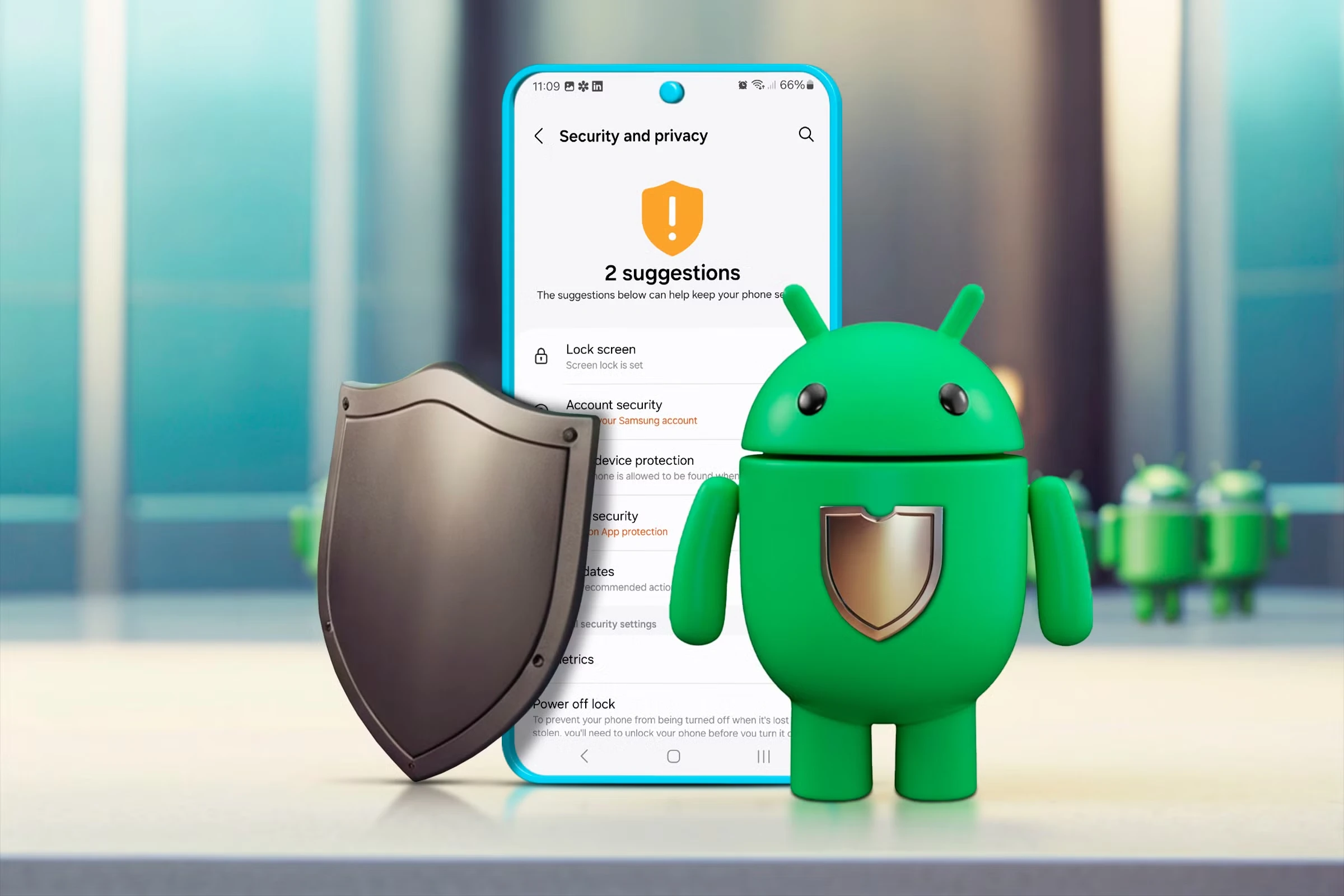
Your Android phone contains your entire digital life — bank accounts, personal photos, private messages, and work data. In 2026, with AI-powered phishing attacks and sophisticated malware on the rise, protecting your phone is more critical than ever. Here are 10 essential security settings every Android user should enable.
1. Enable Google Play Protect
Google Play Protect is Android's built-in malware scanner that checks apps before and after installation:
- Path: Settings → Security & Privacy → App Security → Google Play Protect
- Ensure both toggles are ON: "Scan apps with Play Protect" and "Improve harmful app detection"
- Play Protect scans over 100 billion apps daily across all Android devices
2. Use Biometrics + Strong PIN (Not Pattern)
Fingerprint or face unlock for convenience, but set a strong 6-digit PIN or alphanumeric password as your backup:
- Patterns are easily observed and replicated by others watching you
- 4-digit PINs have only 10,000 combinations; 6-digit PINs have 1 million
- Consider using Passkeys for accounts — they're phishing-resistant, twice as fast as passwords
3. Enable Find My Device (Google Find Hub)
If your phone is lost or stolen, Find My Device lets you:
- Locate your device on a map
- Lock it remotely with a custom message
- Erase all data if recovery is impossible
- Play a sound even if the phone is on silent
Path: Settings → Security & Privacy → Device Finders → Find My Device → ON
4. Enable Theft Detection Lock (AI-Powered)
Android's Theft Detection Lock uses AI to detect if someone snatches your phone and is running, biking, or driving away — it automatically locks your device:
- Path: Settings → Security & Privacy → Device Unlock → Theft Detection Lock
- Also enable Offline Device Lock (locks if phone goes offline for too long)
- Enable Remote Lock (lock via phone number without Google account)
5. Review App Permissions Regularly
Every 3 months, audit which apps have access to sensitive data:
- Path: Settings → Security & Privacy → Privacy → Permission Manager
- Key permissions to check: Location, Camera, Microphone, Contacts, Files
- Set most apps to "Only while using the app" for location
- Android automatically revokes permissions for unused apps
6. Hide Notification Content on Lock Screen
Notifications can reveal OTPs, financial alerts, and private messages even when your phone is locked:
- Path: Settings → Notifications → Lock Screen Notifications → "Show sensitive content only when unlocked"
- This prevents someone from reading your OTP or banking alerts without unlocking
7. Configure Private DNS
Encrypt your DNS queries to prevent your ISP from tracking which websites you visit:
- Path: Settings → Network & Internet → Private DNS
- Set to "Private DNS provider hostname"
- Use: dns.google or one.one.one.one (Cloudflare)
8. Use Privacy Dashboard
Android's Privacy Dashboard shows a 24-hour timeline of which apps accessed your location, camera, and microphone:
- Path: Settings → Security & Privacy → Privacy → Privacy Dashboard
- Check for suspicious access patterns — a calculator app shouldn't be using your microphone
- Revoke permissions instantly from the dashboard
9. Keep Your Phone Updated
Security patches fix critical vulnerabilities. Samsung's February 2026 patch alone fixed 37 vulnerabilities:
- Path: Settings → System → System Update
- Enable automatic updates for both system and apps
- Never use a phone that has stopped receiving security updates
10. Don't Root or Sideload from Unknown Sources
Rooting breaks Android's security model, and sideloading apps from unknown sources exposes you to malware:
- Only install apps from Google Play Store or trusted sources like F-Droid
- If you sideloaded an APK, verify it with VirusTotal first
- Check Settings → Security → Install Unknown Apps and disable for all apps
Signs Your Phone May Be Compromised
- Unusual battery drain or overheating
- Unknown apps appearing on your phone
- Excessive data usage you can't explain
- Random pop-ups or redirects in your browser
- Friends receiving messages you didn't send
If you notice any of these, run a Play Protect scan, check your installed apps, and consider a factory reset as a last resort.




Comments (0)
Be the first to comment!