


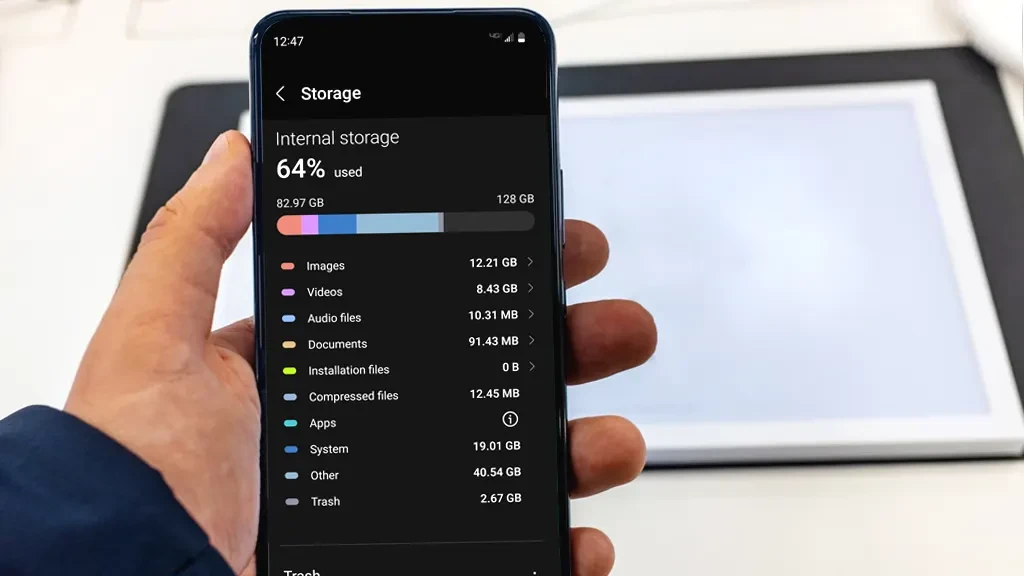
That dreaded "Storage Full" notification always seems to appear at the worst time — when you're trying to capture a perfect photo or download an important file. But before you start panic-deleting, here are 10 smart techniques that can recover 10–30GB of space.
1. Check Your Storage Breakdown First
Before cleaning up, understand what's eating your storage:
- Path: Settings → Storage
- Android shows a breakdown: Apps, Photos, Videos, Audio, Documents, System, Other
- Identify the biggest category — that's where your cleanup will have the most impact
2. Use Files by Google (The Best Free Cleanup Tool)
Files by Google is the smartest storage cleanup tool available — free, no ads, and made by Google:
- Install from Play Store if not already on your phone
- Open the "Clean" tab for automated suggestions
- Duplicate files: Finds and removes exact copies
- Junk files: Clears temporary and cached data
- Large files: Shows files over 10MB for review
- Backed-up media: Identifies photos already saved to cloud
- Unused apps: Lists apps you haven't opened in months
3. Clear App Cache (Safe and Instant)
App cache can consume 5–15GB on phones used for months:
- Path: Settings → Storage → Other Apps → select an app → Clear Cache
- Top offenders: Instagram, YouTube, Chrome, Spotify, WhatsApp
- Safe to clear: Cache is temporary data — the app will rebuild it as needed
- Don't confuse with "Clear Data" which deletes app settings and login info
4. Back Up Photos & Videos to Cloud, Then Free Device Space
Photos and videos are usually the single biggest storage consumer:
- Google Photos: Settings → Back up & sync → ON → choose quality
- "Storage Saver" quality provides excellent quality with significant space savings
- After backup completes, use "Free up space" in Google Photos to remove device copies
- Important: Always verify backup is complete before freeing space
5. Clean Up WhatsApp Media
WhatsApp is often the second-biggest storage hog after your camera roll:
- Open WhatsApp → Settings → Storage and Data → Manage Storage
- Review and delete forwarded media (usually memes and videos you've already seen)
- Delete media from specific chats that share lots of videos
- Turn off "Auto-download media" for mobile data: Settings → Storage and Data → Media auto-download
6. Clean Your Downloads Folder
The Downloads folder collects files you've forgotten about:
- Open Files by Google → Browse → Downloads
- Sort by size to find the largest files
- Delete old APKs, PDFs, images, and documents you no longer need
- This alone can recover 1–5GB on most phones
7. Uninstall or Archive Unused Apps
Apps you haven't used in months still consume storage:
- Uninstall: Long-press app icon → Uninstall
- Archive (Android 15+): Settings → Apps → select app → Archive
- Archiving removes the app but keeps your data — reinstall later and everything is restored
- Check Settings → Storage → Apps, sort by size to find the biggest apps
8. Delete Hidden Thumbnails
Android creates thumbnail previews for every photo and video, stored in a hidden .thumbnails folder:
- Use any file manager to navigate to DCIM/.thumbnails
- Delete everything inside — can recover 1–3GB
- Note: Thumbnails will regenerate as you browse photos, but this provides temporary relief
9. Use Streaming Instead of Downloading
Switch to streaming to save storage on music and video:
- Music: Stream from Spotify/YouTube Music instead of downloading albums
- Video: Delete downloaded Netflix/Prime Video content you've already watched
- Maps: Delete offline maps you no longer need
10. Set Up Automatic Storage Management
Prevent the problem from recurring:
- Enable Smart Storage (Settings → Storage → toggle ON) to automatically remove backed-up photos after 60 days
- Enable Auto-archive apps on Android 15+ to automatically archive unused apps
- Schedule a monthly cleanup reminder using Google Calendar
- Keep auto-download off for WhatsApp and Telegram on mobile data
When to Consider a Factory Reset
If "Other" or "System" storage grows unusually large (10GB+) and nothing helps, a full backup followed by factory reset may be needed. This clears leftover junk from years of app installs and updates.




Comments (0)
Be the first to comment!