


Key takeaways
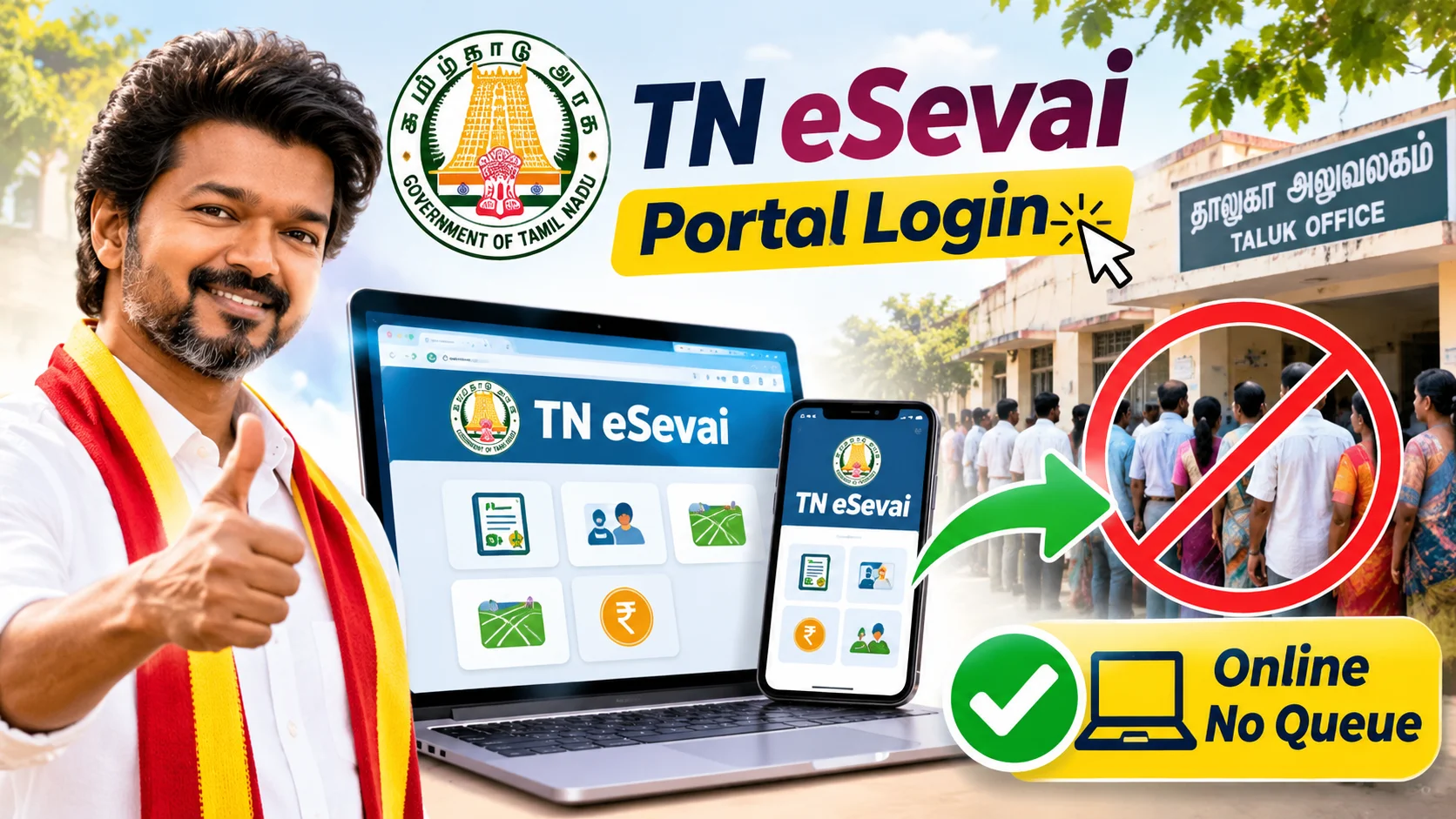
- e Sevai login is the Tamil Nadu citizen window. You register with your mobile number, verify OTP, and walk into certificates and other services from a Phone or computer. The Login itself is free.
- Open only a Tamil Nadu government .gov.in page or the official App listed by TNeGA. Lookalike sites that ask for an extra “activation fee” are the usual trap.
- Login is the easy bit. Keep Aadhaar, mobile, and document photos ready, because the form after Login is where people get stuck.
- If OTP never arrives or the Server hangs, wait, switch browser, or take originals to an e-Sevai centre. Do not keep hitting Send OTP every ten seconds.
What is e Sevai login, in one line?
e Sevai login in Tamil Nadu is how you sign into the official TNeGA e-Sevai portal or App with your mobile number and OTP, then apply for certificates from your phone. This article covers the step-by-step login, what to keep ready, mistakes like lookalike sites that ask for an activation fee, and what to do if OTP never arrives. The login itself is free.
That is the whole answer to the search. You want the Tamil Nadu window, you want it in a language you can follow, and you want the actual Login page — not a random blog, not a YouTube thumbnail, not a .com that copied the government logo.
Picture this. Your cousin in Coimbatore needs an income certificate before a college form closes. The family group is on fire. Someone types “e Sevai-la panni potu vidu.” The next five messages are the same question: how do I even log in?
e Sevai sits under the Tamil Nadu e-Governance Agency, TNeGA. Think of it as a digital Sevai Maiyam. Income, community, nativity, first graduate, legal heir, and a pile of other paper that used to mean a day off work. Login is only the door. The certificates live on the other side.
Some land and revenue jobs still sit on other Tamil Nadu .gov.in sites. If the page is not government, close it. If it is government but not e-Sevai, you may still be in the right place for that one service. Check the address bar before you type a password or OTP.
How do you do e Sevai login, step by step?
You do it on the official Tamil Nadu e-Sevai website, typically the TNeGA e-Sevai portal on a .gov.in address, or on the official App the state lists for the same services. Register once with your mobile number, confirm the OTP, then sign in the same way next time.
Open the site on Chrome. Look at the address. It should end in .gov.in. If a WhatsApp forward gave you a short link, ignore it and type the government address yourself.
Find Citizen Login or Register. Operator Login is for the person sitting inside an e-Sevai centre, not for you at home. Pick the citizen side or you will stare at a staff screen that asks for a department ID you do not have.
New user? Enter your name, mobile number, and the other fields the form asks. Set a password if it offers one. The portal sends an OTP to that mobile. Type the OTP once. Do not forward it to anyone who calls claiming they are “from e Sevai Server support.”
Already registered? Sign in with the same mobile and a fresh OTP, or with the username and password you created. If the page has a Tamil / English toggle, switch it. That is the entire “tamil” part of the search: the same Login, in spoken-friendly Tamil on the official screen.
After you are in, you are not done. Login only opens the locker. You still pick the service, fill the form, upload photos of documents, and pay the government fee if that service has one. UPI on GPay or a similar app is usually sitting there at the payment step. Keep the Phone nearby. OTP for Login and OTP for payment are two different messages. People mix them up and then swear the site is broken.
No smartphone, or the form looks like a puzzle? Walk into an e-Sevai centre with originals and photocopies. The operator logs in on the staff side and files it for you. You still need your mobile, because many steps send an OTP to the citizen, not to the operator.
Jio, Airtel, Vi — does not matter, as long as the number you registered is the one in your hand. If you changed the SIM last month and forgot to update e Sevai, the OTP is now travelling to a dead number. That is not a Server problem. That is you.
What does e Sevai actually cost?
e Sevai login costs ₹0. You pay only if the service itself has a government fee, or if a centre collects the notified facilitation charge for doing the typing for you.
| Where you sign in | What you need | Login cost | Best if |
|---|---|---|---|
| Official web portal | Mobile, OTP, browser | ₹0 | You can upload document photos yourself |
| Official App | Smartphone, OTP | ₹0 | You are applying on the bus, not at a desktop |
| e-Sevai centre | Originals, copies, your mobile | ₹0 to log in; centre may add a notified service charge | The form is confusing, or there is no smartphone at home |
Do not confuse Login with the certificate. An income or community certificate can carry a statutory fee. That amount is set by the department, not by the Login screen. Pay it on the government page through UPI or the options shown there. If someone on a call says pay ₹499 to “activate Tamil login,” cut the call.
Centres are not a scam just because they charge. Many of them collect a notified service charge for the operator’s time. Ask for the rate list on the wall and a receipt. If the number they quote exists only in their head, walk out and try another centre or do it at home.
Data on Jio is cheap. The real cost of a failed Login is not rupees. It is the evening you burn refreshing OTP, plus the college or bank deadline that does not care about your Server error.
Which mistakes get people into trouble?
The mistake that hurts most is logging into a fake page. A Facebook ad, a Telegram forward, a “tamil e sevai login” Google result that is not .gov.in. You type Aadhaar, you type OTP, and someone else now has both.
Second: using Operator Login. It looks official. It is official — for staff. You will not get past it, and you will think the portal is down.
Third: OTP panic. You tap Send OTP five times. The first SMS arrives late. You enter the newest code. The Server wanted the first one. Now you are locked for a few minutes. Sit. Wait. Try once.
Fourth: a mobile number that is not yours. Using amma’s Phone to register, then trying to log in from your Phone next week. e Sevai will send the OTP to amma. She is in the temple. You are stuck.
Fifth: treating Login as the whole job. You sign in, feel victorious, close the tab, and never submit the application. The VAO does not receive good vibes. Submit, download the acknowledgement, take a screenshot. If the site asks for a reference number later, that screenshot is your friend.
Sixth: uploading a selfie of the document under a tube light. Blurry community certificate photos get bounced. Place the paper on a table, use daylight, crop the edges, and check the file size if the portal complains.
Seventh: saving your password in a random notes App titled “govt,” then forwarding that screenshot to a “helper” on WhatsApp. There is no helper. There is only a stranger waiting for OTP.
What should you do now?
Open the official Tamil Nadu e-Sevai .gov.in site yourself. Do not borrow a link from the group. Switch the page to Tamil if that is how you read faster. Register with the mobile number you actually carry. Finish Login once, even if you apply tomorrow, so the OTP drama happens tonight and not at 11.40 pm before a deadline.
Keep Aadhaar, family card, and the document photos in one folder on the Phone. When Login works, apply immediately. If the Server throws a generic error, wait ten minutes, try another browser, or go to the nearest e-Sevai centre with originals.
If a page asks you to pay just to create a Login, it is not e Sevai. Close it. The government window does not charge you an entry ticket to your own certificates.

Comments (0)
Be the first to comment!