


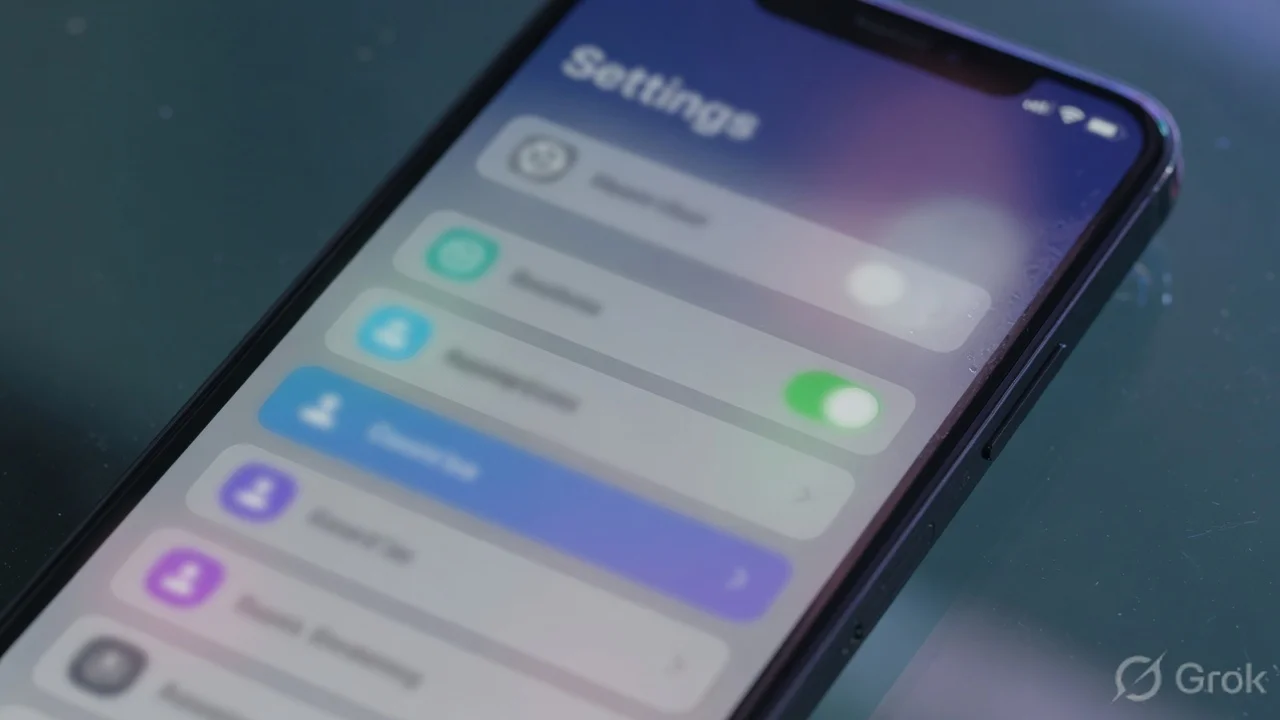
Liquid Glass: Beautiful in theory, exhausting in practice
When Apple unveiled iOS 26's Liquid Glass design at WWDC last year, the reaction was split right down the middle. Half of iPhone users loved the translucent, glassy aesthetic — it made the interface look alive, premium, genuinely futuristic. The other half found it overwhelming within a week. The constant bright flashing when you tap things, the blinding transparency on every menu and dock, the animations that layer on top of each other — it adds up fast, especially if you use your phone under bright sunlight or in a dark room.
Apple heard the feedback. Over successive iOS 26 updates, they've quietly been adding controls to dial back the intensity without fully abandoning the new design. iOS 26.4 adds the most significant one yet — a new setting called "Reduce Bright Effects" that specifically targets the flashy highlight animations that bother people most. Combined with settings that came in earlier updates, you can now get an iPhone experience that's genuinely close to iOS 18 without downgrading.
Premium Content
5 settings that actually work — exact paths, what each one changes visually, and the combination that makes iOS 26.4 feel like iOS 18 again. All inside.
You've used 3 of 3 free articles today.
Subscribe NowAlready subscribed? Sign in

Comments (0)
Be the first to comment!