


The attack that bypasses Gatekeeper by making you do the work yourself
If you own a Mac, you probably know that macOS has strong built-in security. Gatekeeper checks every app before it runs. Software needs to be signed and notarised by Apple. Unsigned apps get blocked automatically. The whole system is genuinely impressive.
Cybercriminals know this too. So they stopped trying to sneak malware past Gatekeeper. Instead, they started tricking you into running it yourself.
Here's how the attack works: you download what appears to be a legitimate app — maybe it looks like Chrome, or an OpenAI tool, or a productivity app — from a website that looks convincing. Instead of the app running directly, it shows you an instruction screen: "To complete installation, open Terminal and paste this command." A command is displayed, often appearing technical and legitimate. You copy it, open Terminal, paste it, press Enter. And now your Mac is infected.
From macOS's perspective, this is entirely legitimate. You opened Terminal — a system application. You ran a command — a completely normal thing to do. Gatekeeper has nothing to block. The system did exactly what you asked it to do. The security layer was bypassed not by exploiting a vulnerability, but by exploiting your trust.
Why this attack exists — the Gatekeeper backstory
Before 2023, there was a popular way to bypass Gatekeeper: right-click an unsigned app, select Open, and click through the security warning. Users did this all the time for legitimate software that wasn't Apple-notarised. Cybercriminals exploited this by distributing malware and instructing users to right-click-open it.
macOS Sonoma in 2023 eliminated this bypass. Right-clicking an unsigned, unnotarised app no longer gives you an override option — it just gets blocked. This was a significant win for Mac security and a significant problem for cybercriminals who'd been relying on that method.
Those criminals didn't give up. They adapted. The Terminal paste attack emerged as the replacement. It's cruder — it requires more steps from the victim and some social engineering to convince someone to open Terminal at all. But it works. Gatekeeper is completely irrelevant against it. The macOS security model, which is built around app signing and sandboxing, has no mechanism to evaluate a raw command typed into Terminal. That's a terminal emulator — it's designed to run exactly what you type into it.
What macOS 26.4 does to address this
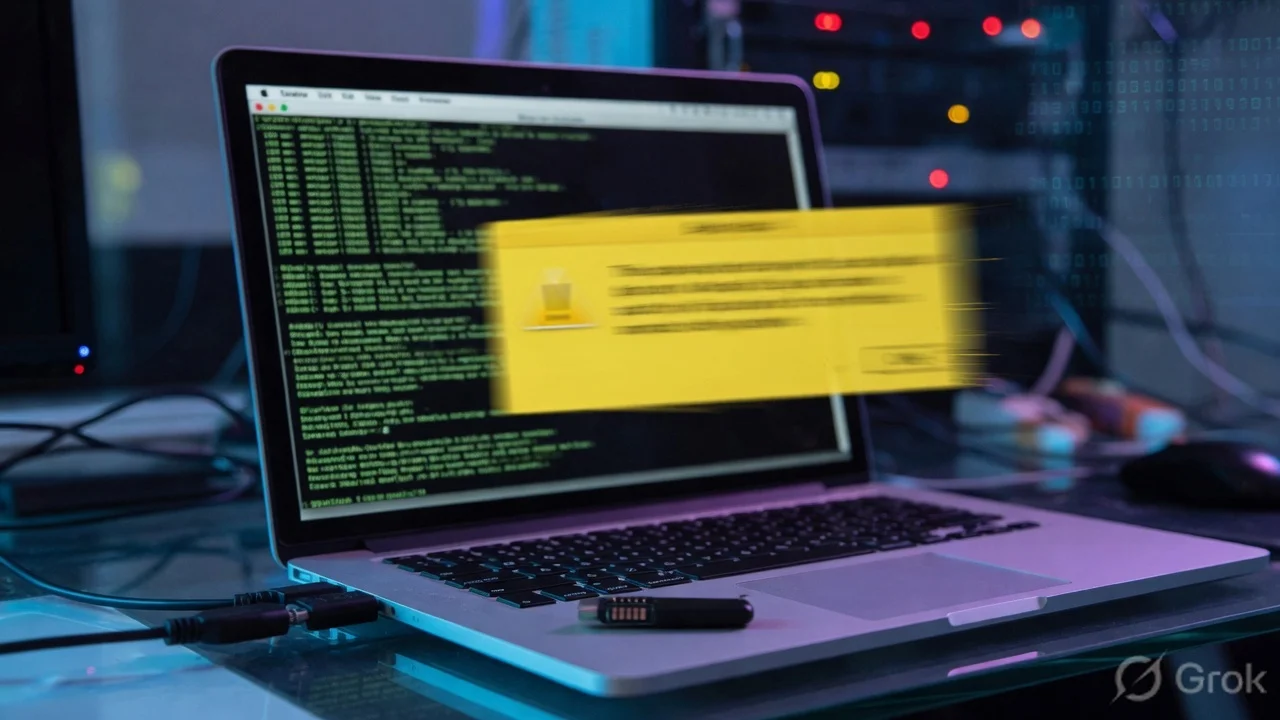
With macOS Tahoe 26.4, Apple introduced a new protection: when you paste a command into Terminal that macOS believes may be malicious or suspicious, the system now shows you a warning prompt before you execute it. The warning gives you a chance to pause and reconsider before the command runs.
This is a meaningful addition because the attack relies entirely on the victim acting quickly without scrutinising the command. Most people copy-paste Terminal commands without reading them — the commands look like technical gibberish that means nothing to a non-developer. The warning creates an intervention point that wasn't there before.
It's not foolproof. A warning prompt that someone clicks through without reading doesn't protect against anything. The effectiveness depends on users actually pausing when they see the warning and asking themselves: did a legitimate app really just tell me to run a command in Terminal?
How to identify this type of attack — what to watch for
The attack pattern is consistent enough that you can learn to spot it:
Legitimate software installations on Mac never ask you to open Terminal and paste a command. Not Chrome. Not Firefox. Not any Adobe product. Not any major application. If a download tells you to do this, it is not a legitimate installer.
The fake apps often impersonate well-known software. Google Chrome look-alikes, OpenAI browser tools, productivity apps, cryptocurrency wallets — these are common targets because users are more likely to download them from unofficial sources. Always download software directly from the developer's official website or the Mac App Store.
The command they ask you to paste is usually long and full of characters that appear technical. This is designed to discourage you from reading it. If you paste a command into Terminal that you don't understand and didn't specifically request, stop. Close Terminal. Don't press Enter.
What Indian Mac users should know specifically
India's Mac user base has grown significantly as MacBook sales expanded into the professional and student market. MacBooks are popular among software developers, content creators, designers, and business professionals across Bengaluru, Mumbai, Chennai, Delhi, and Pune's tech ecosystems.
The Terminal paste attack is particularly relevant for this audience because developers and technically inclined users are more likely to use Terminal regularly and less likely to be suspicious of being asked to run a command. "Of course I know how to use Terminal" — that confidence is exactly what these attacks exploit. The social engineering is more convincing when the target is technically literate enough to believe the command might be legitimate.
For Indian Mac users who download software from sources other than the Mac App Store or official developer websites — especially from GitHub-adjacent sites, developer communities, productivity tool aggregators, or messaging groups where software gets shared — the risk is real. A pirated app, a cracked version of software, a "free" version of a paid tool: these are common delivery methods for this attack in India's software ecosystem where paid tools are often sought out through unofficial channels.
If you're a developer in India running an older MacBook that hasn't been updated to macOS 26.4, the Terminal paste warning isn't available to you yet. Update to get the protection. If you're on macOS Sonoma or Sequoia, be manually vigilant: no legitimate software requires Terminal commands during installation.
What macOS 26.4 Terminal warning looks like in practice
When macOS 26.4 detects that you're pasting a command that matches patterns associated with malicious behaviour, it intercepts before execution and shows a dialog explaining that the command may be harmful. You have the option to proceed or cancel.
The detection isn't based on a static list of bad commands — it uses Apple's analysis of patterns in known malicious scripts. Commands that attempt to download and execute remote payloads, modify system files, disable security features, or exfiltrate data are typical targets. A standard Terminal command to list files or navigate directories won't trigger the warning.
TamilTech's take
The Terminal paste attack is a great example of cybercriminals adapting cleverly to security improvements. When Apple closed the right-click-open bypass, attackers didn't try to find another technical exploit — they found a social one. Convincing a human to bypass their own security is almost always easier than finding a zero-day vulnerability.
Apple's response in macOS 26.4 is the right move, but it's worth being clear about what it is and isn't: it's a warning system, not a block. A determined attacker who builds enough social pressure into their fake installer — "this is required for the software to work, it's safe, click Continue" — can still succeed if the user dismisses the warning without reading it.
The real defence is understanding the rule: no legitimate Mac application asks you to open Terminal and paste a command during installation. That's the line. If you hold that rule in your head and apply it consistently, the Terminal paste attack fails every time, warning or no warning.




Comments (0)
Be the first to comment!