


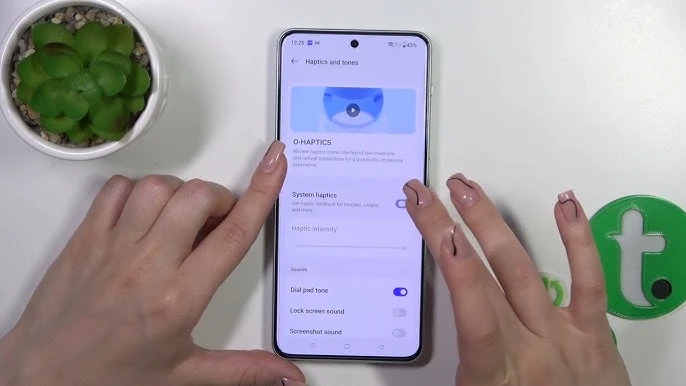
OnePlus devices feature stunning LTPO AMOLED displays and premium audio. This guide helps you optimize both for the best experience.
Display Resolution Settings
Navigate to Settings → Display & Brightness → Screen Resolution:
- High (QHD+) - 3168 x 1440 on OnePlus 13, sharpest visuals, more battery usage
- Medium (FHD+) - 2340 x 1080, great balance of quality and battery
- Auto - Switches based on content, recommended for most users
Refresh Rate Options
Go to Settings → Display & Brightness → Refresh Rate:
Advertisement
- Standard (60Hz) - Maximum battery life, fine for basic use
- High (120Hz) - Ultra-smooth scrolling and gaming
- Auto - LTPO dynamically adjusts 1-120Hz based on content
Pro tip: Auto mode with LTPO gives you 120Hz when needed while saving battery during static content.
Color Mode Calibration
Access at Settings → Display & Brightness → Display Color Mode:
- Vivid - Saturated colors, great for media consumption
- Natural - Accurate sRGB colors for photo editing
- Pro (P3) - Wide color gamut, professional color accuracy
- Custom - Adjust color temperature and saturation manually
Image Enhancement
Under Settings → Display & Brightness:
- Image Sharpener - Enhances image clarity, especially for lower resolution content
- Video Colour Boost - Richer colors in video playback
- Motion Graphics Smoothing - MEMC for smoother video (24fps → 60/120fps)
Eye Comfort Features
- Eye Comfort Mode - Reduces blue light, schedule for evening use
- Dark Mode - Saves battery on AMOLED, easier on eyes at night
- DC Dimming - Reduces screen flicker at low brightness (some models)
- Reading Mode - Grayscale display for reading, reduces eye strain
Always-On Display
Configure at Settings → Display & Brightness → Always-On Display:
Advertisement
- Choose clock styles and colors
- Show notifications on AOD
- Schedule AOD hours to save battery
- Enable "Tap to show" for on-demand AOD
Dolby Atmos Audio
Enable at Settings → Sound & Vibration → Dolby Atmos:
- Dynamic - Auto-adjusts based on content type
- Movie - Enhanced spatial audio for films
- Music - Optimized for music listening
- Game - Directional audio for gaming immersion
Holo Audio (Spatial Audio)
Find at Settings → Sound & Vibration → Holo Audio:
- Simulates surround sound through stereo speakers
- Works with any headphones
- Creates immersive 3D soundstage
- Best for movies and gaming
Equalizer Settings
Access via Settings → Sound & Vibration → Dolby Atmos → Equalizer:
- Preset profiles: Rock, Pop, Jazz, Classical, etc.
- Custom EQ with adjustable bands
- Bass boost and virtualizer options
Haptic Feedback
Customize at Settings → Sound & Vibration → Haptics & Tones:
- Adjust vibration intensity levels
- Enable/disable keyboard haptics
- Touch feedback for gestures
- Notification vibration patterns
Speaker Settings
- Dual Stereo Speakers - OnePlus uses earpiece + bottom speaker for stereo
- Audio Balance - Adjust left/right channel balance
- Mono Audio - Combine channels for accessibility

Comments (0)
Be the first to comment!