


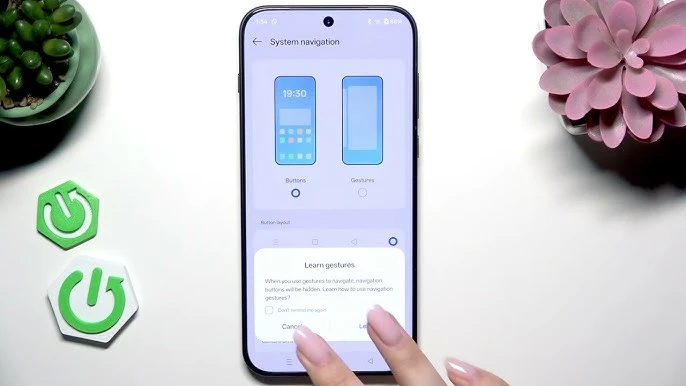
OxygenOS offers extensive gesture controls for efficient navigation. This guide covers every gesture and shortcut available.
Navigation Modes
Choose at Settings → System Settings → Navigation:
- Gesture Navigation - Swipe-based, no buttons, maximum screen space
- Swipe up from bottom - Home
- Swipe up and hold - Recent apps
- Swipe from left/right edge - Back
- Virtual Keys - Traditional 3-button navigation (Back, Home, Recent)
- Hide gesture bar - More screen space, learn muscle memory
Screen-Off Gestures
Enable at Settings → Accessibility & Convenience → Screen-Off Gestures:
Advertisement
- Double-tap to wake - Tap screen twice to wake
- Draw O - Open Camera
- Draw V - Toggle flashlight
- Draw S - Open custom app
- Draw M - Open custom app
- Draw W - Open custom app
- Draw || (two lines) - Play/Pause music
- Draw < or > - Previous/Next track
- Draw ^ - Open custom app
Quick Gestures
Find at Settings → Accessibility & Convenience → Gestures & Motions:
- Three-finger screenshot - Swipe down with 3 fingers to capture
- Three-finger swipe up - Split screen activation
- Flip to mute - Flip phone face-down to silence calls
- Pick up to answer - Lift phone to ear to answer calls
- Auto answer calls - When using headset
One-Handed Mode
Enable at Settings → Accessibility & Convenience → One-Handed Mode:
- Swipe down on gesture bar to activate
- Screen shrinks to bottom corner
- Choose left or right corner
- Tap outside to exit
Quick Launch (Fingerprint)
Configure at Settings → Accessibility & Convenience → Quick Launch:
- Press and hold fingerprint sensor
- Assign apps to launch directly
- Skip lock screen for quick access
Icon Pull-Down
Available at Settings → Home Screen → Icon Pull-Down Gesture:
Advertisement
- Swipe down on any app icon
- Opens app shortcuts or mini version
- Quick access without full launch
Sidebar
Configure at Settings → Accessibility & Convenience → Sidebar:
- Swipe in from screen edge
- Add favorite apps
- Quick tools: Calculator, Notes, Recording
- Smart features: Screen Recognition, Translation
Split Screen
Multiple ways to activate:
- Three-finger swipe up on app
- Recents view → App icon → Split Screen
- Sidebar → Drag app to screen half
Floating Windows
- Recents view → App icon → Small Window
- Drag from Sidebar to create floating app
- Resize and position anywhere
- Minimize to bubble for quick access
Alert Slider Shortcuts
The physical Alert Slider has 3 positions:
- Top - Silent (vibrate only)
- Middle - Vibrate
- Bottom - Ring
Power Button Customization
At Settings → Accessibility & Convenience → Power Button:
- Press and hold: Choose between Power Menu or Google Gemini
- Double-press: Open Camera or custom app

Comments (0)
Be the first to comment!