


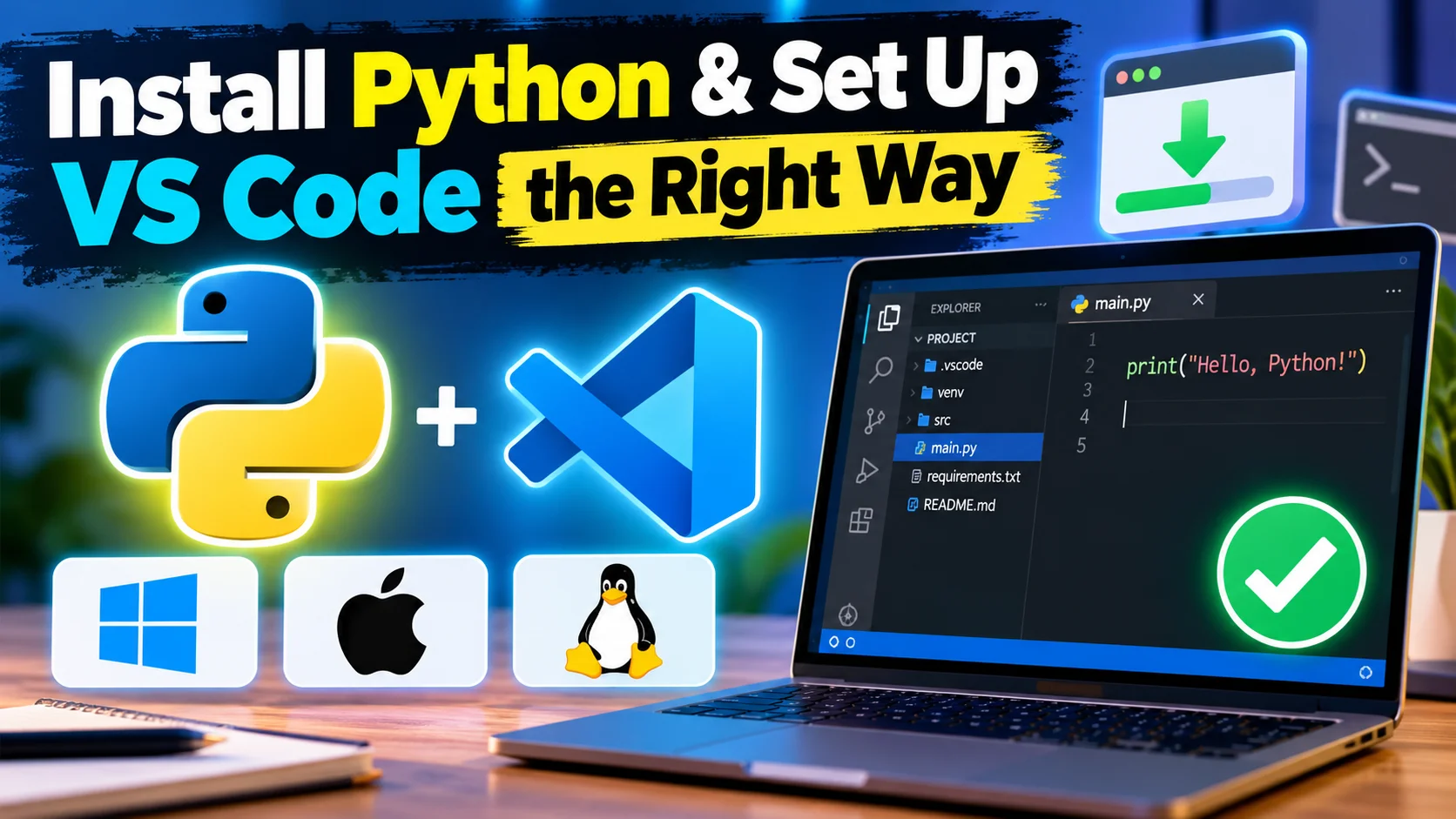
Key Takeaways
- Most beginners quit in the first hour not because Python is hard, but because PATH and pip throw confusing errors nobody explained.
- On Windows, ticking "Add python.exe to PATH" during install saves you 90% of day-one pain.
- Use
python3on Mac/Linux andpythonon Windows - that one word mismatch breaks half the tutorials people copy online. - VS Code + the official Python extension (by Microsoft) is the combo almost every Indian dev team and bootcamp recommends to freshers.
- Know the difference between running a .py file and typing into the REPL - they behave differently and that confusion alone stalls a lot of first-week learners.
Why do most beginners give up before they write a single real program?
Picture this. A student in Chennai downloads Python, opens Command Prompt, types python, and gets "python is not recognized as an internal or external command". Laptop closes. Tab stays open for three days. YouTube video gets abandoned at the 4-minute mark.
This happens on a scale most people don't realize. It is not a logic problem. It is not loops or functions. It is the installation and the terminal that breaks confidence before the actual learning even starts.
The first hour decides whether someone continues with Python or decides "coding is not for me". So let's do that first hour properly, once, the right way.
Step one - how do you actually install Python 3 and prove it's working?
On Windows, go to python.org, download the latest stable installer, and run it. On the very first screen of the installer, there's a small checkbox at the bottom - "Add python.exe to PATH". Tick it. This single checkbox is the reason behind almost every "python is not recognized" complaint from Indian students online.
On Mac, don't rely on whatever old Python Apple ships by default. Install the official package from python.org, or use brew install python3 if you already use Homebrew. Mac always expects the command python3, not python.
On Linux, Python 3 usually comes preinstalled. If pip is missing, a quick sudo apt install python3 python3-pip (Ubuntu/Debian family) sorts it out.
Now verify it everywhere. Open a terminal and type python --version on Windows, or python3 --version on Mac/Linux. You should see something like Python 3.13 or newer. If nothing shows up, PATH is the usual suspect - more on that below.
You can also check this from inside a script, which is handy when a laptop has multiple Python installs fighting each other (very common once students install Anaconda on top of a regular install):
import sys
print("Python version:", sys.version)
print("Running from:", sys.executable)
That second line tells you exactly which copy of Python actually ran your code. Half of VS Code's "module not found" complaints trace back to this - two Pythons on one machine, and the wrong one got picked.
VS Code, the Python extension, and your first script - where does this show up at work?
Download VS Code free from code.visualstudio.com for whichever OS you're on. Once it opens, go to the Extensions panel (Ctrl+Shift+X on Windows/Linux, Cmd+Shift+X on Mac), search "Python", and install the official extension published by Microsoft - the one with the blue/yellow logo, not a random lookalike.
Create a folder for your practice code, open that folder in VS Code, and add a new file called hello.py. Type this in:
print("Hello, TamilTech coder!")
name = input("Enter your name: ")
print(f"Vanakkam, {name}! Your Python setup is working.")
Click the Run triangle in the top-right corner, or right-click inside the file and choose "Run Python File in Terminal". VS Code opens its built-in terminal and runs the file using whichever interpreter is selected at the bottom-right of the window. If that number looks wrong, or shows no Python at all, click it and pick the correct one from the list.
This exact setup - VS Code, Python extension, run button, integrated terminal - is what most Indian service-sector IT training programs and product-company onboarding guides point freshers to, because it needs zero paid tools and works the same on a college lab PC and a personal laptop.
Python itself shows up constantly once you're past setup. IT services companies use it for automation scripts, testing frameworks and internal tooling. Product companies use it for backend services, data pipelines and internal dashboards. Online coding rounds on HackerRank or similar platforms run your code exactly the way you just ran hello.py - as a file, start to finish, with input and output checked against test cases. Interviewers at the fresher level also love asking "what's the difference between running a script and using the REPL" - which we're covering next, so you'll have that answer ready.
pip, PATH, and python vs python3 - what is actually going on?
PATH is just a list of folders your operating system checks whenever you type a command. If the folder containing python.exe isn't in that list, your OS says "command not found" even though the file is sitting right there on disk. That's the entire mystery behind the scariest-looking Windows error.
The python vs python3 split is historical baggage, nothing more. Older Mac and Linux systems kept python pointing to ancient Python 2 (or nothing at all) for backward compatibility, so python3 became the safe, explicit command there. The python.org Windows installer, on the other hand, sets up python to directly mean Python 3. Same language, different habit per OS.
pip is Python's package manager - it ships automatically with modern Python. Check it with pip --version, or better, python -m pip --version. That second form forces pip to match the exact Python that command is pointing to, which matters a lot once you have more than one Python on the machine. To install a package, it's simply python -m pip install requests - that -m habit saves you from the classic "installed fine in terminal, still says ModuleNotFoundError in VS Code" trap, because it ties the install to the right interpreter every time.
Script vs REPL, the mistakes everyone makes, and your first practice task
Typing python (or python3) alone with no filename drops you into the REPL - Read, Eval, Print, Loop. You get a >>> prompt, each line runs the moment you hit Enter, and nothing is saved anywhere unless you copy it out yourself. It's great for testing one quick idea, terrible for anything you want to keep.
Running python hello.py instead executes the whole file top to bottom in one go. Nothing appears on screen unless you explicitly used print() for it - which confuses REPL users who are used to seeing every value echoed back automatically.
Common Mistakes Beginners Make
- Skipping the "Add to PATH" tickbox on Windows, then getting stuck on "command not found". Fix: re-run the installer and tick it, or add the folder manually via Environment Variables.
- Typing python on Mac/Linux when only python3 exists. Fix: just use python3 consistently, every time, in every command.
- Installing a package in the terminal while VS Code's Run button uses a different interpreter, leading to a confusing ModuleNotFoundError right after a "successful" install. Fix: check the interpreter shown at the bottom-right of VS Code matches the terminal you installed in.
- Mixing tabs and spaces, which throws an IndentationError because Python treats whitespace as actual code structure, not decoration. Fix: let VS Code auto-indent for you, never hand-mix the two.
- Calling a function before it's defined further down in the same file, which throws a NameError. Fix: definitions go above the code that uses them.
def greet(username):
    message = f"Hello, {username}, welcome to Python!"
    return message

print(greet("Priya"))
Your practice task: Write a script that asks for your name and your favourite programming language using input(), then prints a sentence combining both with an f-string. First, type the same three lines directly into the REPL and watch what happens line by line. Then save it as practice.py and run it as a file from VS Code. Notice exactly where the two behave differently - that one exercise clears up more day-one confusion than any lecture can.


Comments (0)
Be the first to comment!